Today a home network connects laptops, phones, TVs, lights and often the work laptop as well. Here you will find out how to secure it in a way that is easy to follow and takes reasonable effort.
Network security
Your router is the border between your home and the internet. Everything behind it belongs to your home network. How well this border works depends less on expensive technology than on a few basic settings.
Updates: Routers, computers, phones and smart home devices receive security updates. Turn on automatic updates wherever possible. Devices that no longer receive updates from the manufacturer should be replaced or separated from the rest of the network.
Passwords: Change the router's default password. Use a different password for every service. A password manager does the remembering for you.
Wi-Fi encryption: Use WPA3 or, if older devices do not support it, WPA2. Older methods such as WEP or WPA are considered insecure.
Guest network: Visitors get their own Wi-Fi. That way, their devices can see neither your computers nor your printer.
Remote access and UPnP: Many routers allow access from outside or let devices open ports themselves (UPnP, Universal Plug and Play). Turn both off if you do not specifically need them.
Backups: Back up important data regularly to a storage device that is not permanently connected. A backup also helps if a device breaks or gets lost.
Router password changed and stored safely
Automatic updates turned on for the router
Wi-Fi encrypted with WPA3 or WPA2
Guest network set up for visitors
Remote access and UPnP turned off if not needed
Password manager set up
Important data backed up to a separate storage device
Ubiquiti: planning and installation
If you want more than the basic settings of your provider's router, UniFi is a widely used solution. UniFi is a product family from the manufacturer Ubiquiti. It includes a gateway, switches and Wi-Fi access points, plus further product lines such as network storage and cameras. All devices are managed through one shared interface that runs on the gateway. You do not need an extra computer as a control centre.
Originally intended for small businesses, UniFi is also popular at home. The reason: separate networks, a guest network, firewall rules and Wi-Fi across several access points are included without licence costs. There are no ongoing fees for the basic functions.
Components
The example models reflect the situation in 2026. The range changes several times a year.
Gateway
The gateway is the transition between your home network and the internet. It works as a router and firewall, separates the networks and hosts the management interface.
Examples: Cloud Gateway Ultra (entry level), Cloud Gateway Max (typical for a house), Dream Router 7 (with built-in Wi-Fi, for flats).
Switch
The switch distributes the network cables to the rooms. Many models also supply power to access points and cameras over the cable. This is called PoE (Power over Ethernet).
Examples: Flex Mini 2.5G (desk), Lite 8 PoE, Flex 2.5G 8 PoE.
Access Point
An access point (AP) broadcasts the Wi-Fi. Several small, well-placed APs cover a house more evenly than a single powerful device.
Examples: U7 Lite (flat, several APs), U7 Pro (with 6 GHz band), U7 In-Wall (wall box with additional LAN ports).
NAS (optional)
A NAS (Network Attached Storage) is central storage in your home network for photos, documents and backups. The data stays at home, and no cloud subscription is needed.
Examples: UNAS Pro 4 (compact), UNAS Pro (7 bays), UNAS Pro 8 (8 bays, 10G).
Typical setup
A detached house or a larger flat is usually set up like this:
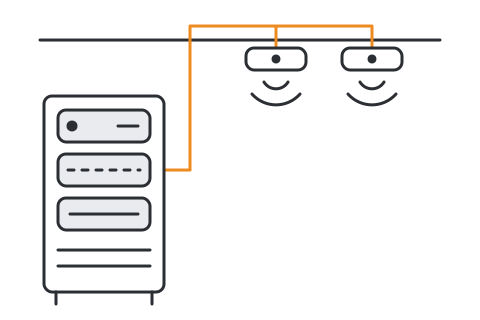
Internet via fibre, DSL or cable. The provider's modem only works as a modem (bridge mode).
Gateway, for example Cloud Gateway Max: router, firewall, separate networks, management.
Switch with PoE, for example Flex 2.5G 8 PoE, connected to it:
access point on the ground floor
access point on the upper floor
network storage (NAS, see below) or a workstation by cable
a small switch in the living room for TV and games console
Typical setup of a UniFi home network
For a flat, a Dream Router 7 on its own is often enough, possibly with one additional access point. An affordable entry-level setup is the Cloud Gateway Ultra with Lite 8 PoE and U7 Lite. The Cloud Gateway Ultra has limits and, based on experience, suits smaller households (rule of thumb from specialist articles: internet up to about 800 Mbit/s, LAN ports with 1 GbE). The manufacturer's specifications on ui.com are authoritative.
Storage: UniFi NAS
The NAS is managed in the same UniFi interface (UniFi Drive). You create shared folders and set permissions for each family member. Snapshots keep earlier versions. This usually lets you recover files that were deleted by mistake or encrypted by ransomware. Scheduled backups run to a second NAS or an external drive. RAID 5, 6 or 10 tolerates the failure of one drive, RAID 6 even two.
The limits:
RAID is not a backup. An additional copy belongs off-site or on a separate storage device.
Fewer add-on apps than Synology or QNAP.
It ties you more closely to UniFi.
Drives are not included.
Planning steps
Assess your needs: internet speed, number of devices today and in two to three years, storage for photos and backups, home office, smart home.
Check the floor plan and cable routes: Where does the internet connection come in? Where can the distribution point go? Which rooms get network sockets? Access points belong in the middle of the ceiling, not behind metal or radiators.
Define the networks: for example Private, Work, Smart Home and Guests (see Home network segmentation).
Choose the hardware: a device that is as affordable as possible and still meets your internet speed and PoE needs. Run the provider's router as a pure modem so that two routers are not working one behind the other.
Draw up a parts list: devices, cables, patch panel, small cabinet, optionally an uninterruptible power supply.
Installation steps
Lay the cables, mount the access points, switch and gateway.
Set up the gateway. This is also possible without a Ubiquiti account, with a purely local administrator login. Without an account, you lose remote access via the Ubiquiti cloud, cloud backup and push notifications.
Update the firmware and turn on regular backups of the configuration.
Create the networks and assign the right network to each Wi-Fi name. In the guest network, isolate the devices from each other.
Set firewall rules: which network may talk to which? Make a backup first.
Set up specific exceptions so that, for example, streaming to the TV keeps working.
Add the devices and give fixed devices such as the printer or NAS a fixed address.
Test: from the guest network, nothing in the home network may be reachable. From the smart home network, no access to Private. Printing and streaming from the private network still work.
Document: keep the network plan, address list and login details safely offline.
Advantages
One system, one interface, an overview of all devices
Separate networks, guest network and firewall without licence costs
Expandable: connect and add another access point or switch
Can run without the cloud, managed locally
Optional network storage in the same interface, data stays at home
Large user community with many guides
Limits
Vendor lock-in: the system only shows its strengths if all components come from Ubiquiti.
No classic telephone support. Help is available through documentation, the community and specialist dealers.
Frequent software updates. Do not update on the first day, and make a backup first.
More options mean more responsibility. One wrong firewall rule, and the printer can no longer be reached.
More expensive than a simple Wi-Fi mesh system from an electronics store.
Data sheet values are manufacturer specifications, not independent measurements.
Home network segmentation
Segmentation means splitting the home network into several separate networks. Technically, this is done with VLANs (Virtual Local Area Networks). These are logically separated networks that run over the same cables and devices. The gateway decides according to fixed rules which network may talk to which.
Why this also makes sense at home:
Smart home devices often go without updates for years. If one of them is attacked, it should not be able to reach your laptop, NAS or camera footage.
Guests' devices are unknown. In the guest network, they cannot see your home network.
Work laptops often need to be kept apart from the private network. Conversely, work software should not look into your private network.
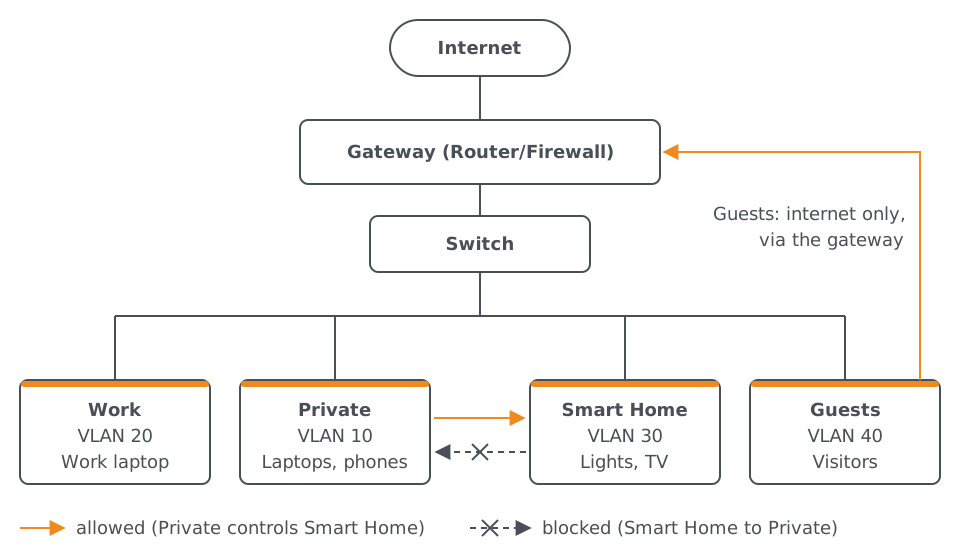
The internet is connected to the gateway (router and firewall), the gateway to a switch.
Four separate networks are connected to the switch: Private (VLAN 10), Work (VLAN 20), Smart Home (VLAN 30) and Guests (VLAN 40).
Private may reach Smart Home, Smart Home may not reach Private.
The guest network only reaches the internet, via the gateway.
Example home network
A possible plan for four networks:
Network
VLAN
Devices
Allowed to reach
Private
10
laptops, phones, NAS, printer
internet and Smart Home
Work
20
work laptop
internet only
Smart Home
30
lights, sockets, TV, robot vacuum
internet only, no access to Private
Guests
40
visitors' devices
internet only, devices isolated from each other
The rules for this:
Private to Smart Home: allow. This lets you control lights and devices.
Smart Home to Private: block. Replies to connections that start from Private remain allowed.
Guests: internet only. All local networks are blocked.
Streaming and AirPlay: TVs, speakers and printers are found through a discovery service (mDNS, Multicast DNS) that only works within one network. An mDNS reflector in the gateway makes them visible in the private network on purpose, without removing the separation.
From practice
SIHTRAFrom practice
I often find that it is not the hardware that was planned badly, but the location of the access point: in the utility room in the basement instead of in the middle of the ceiling.
When people set up a guest network, the first thing they often notice is: the printer has gone. That is not a fault, it is segmentation. The right exception comes afterwards.
My assessment: the Ubiquiti account is only worth it if you really need remote access. A local administrator login plus VPN, meaning an encrypted connection when you are away, is the leaner option.
Questions? Let's talk.
Tell me what it's about. You'll get an honest assessment, not a sales pitch.